
Having a bootable Linux on flash drive is very handly tool for a web developer. When I was about to create one, my TDK 16GB flash drive becomes inaccessible in my Windows 7 file explorer. The Windows explorer detected it and shows "Removable drive (H:)". When I clicked the drive, it prompted me to insert a disk in Drive H: as if it were acting as a CD or DVD drive. I checked it on my "Device Manager" and found my flash drive registered as "USB Disk 30X USB Device". I tried some known fix: uninstalled/re-installed the drive's device driver, re-assigned new Drive letter and nothing worked. I thought of giving it a low level format and in this article will show how to do it. Disclaimer: webfoobar assumes no responsibility for any data loss or permanent damage executing the following tutorial steps (use at your own risk).
- First, identify the VID (Vendor ID) and PID (Product ID) of your flash drive by using ChipGenius software and it can be downloaded here.
- Unplug all the external storage devices inserted in your computer then plug your inaccessible flash drive and run the ChipGenius. It will scan your computer for all USB devices connected in your computer.
- On the first pane of ChipGenius window shows the list of all USB devices detected, select the USB device labeled with the drive letter of inaccessible flash drive (in my case its [H:]). Below the first pane will show the detailed information of the selected device. Mine shows:
Take note of the VID and PID.Protocal Version: USB 2.00
Current Speed: High Speed
Max Current: 50mAUSB Device ID: VID = 13FE PID = 1D00
Serial Number: 000000000000 -
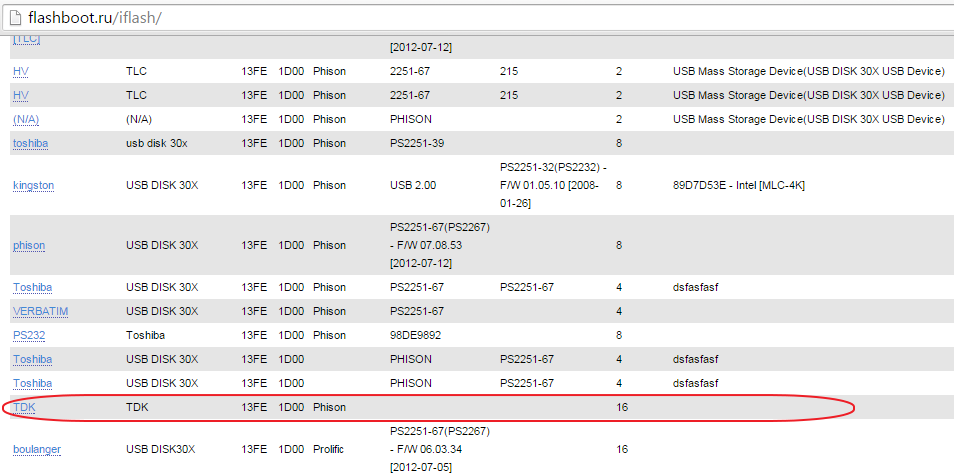
Identify the compatible software/util to format your flash drive. Go to FlashBoot.ru and input the VID and PID of your flash drive. Mine didn't show any util available:
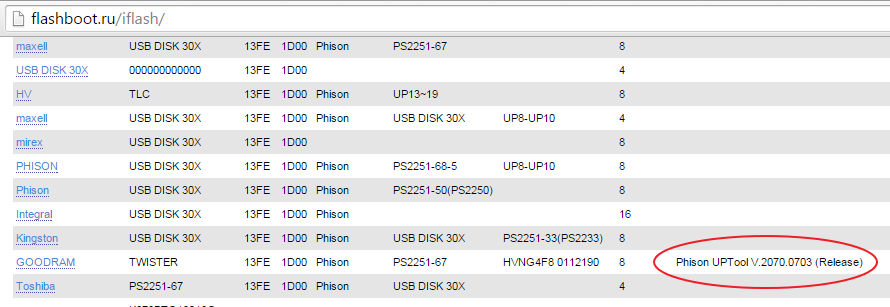
On the same page that list devices with VID = 13FE PID = 1D00, I scan other devices that have available util and I selected "Phison UPTool V.2070.0703 (Release)":
-
I googled "Phison UPTool V.2070.0703 (Release)" and found where I can download it: http://flashboot.ru/files/file/410. Download and extract the util.
-
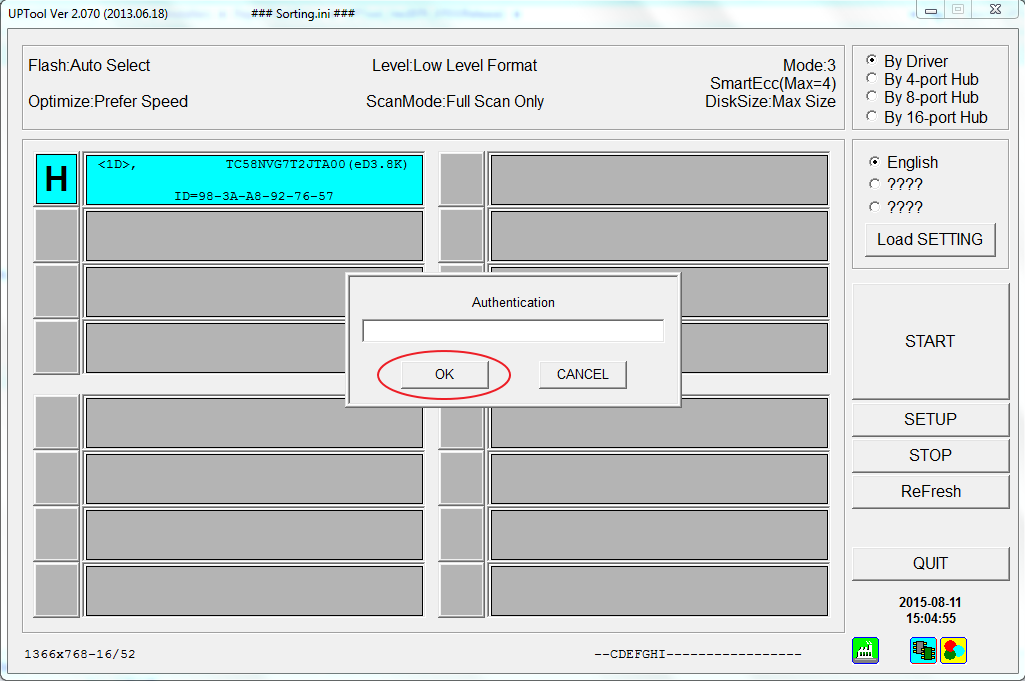
Execute the util (UPTool_Ver2070.exe). Click "SETUP" button, a small window will popup. Leave the "Authentication" blank and click "OK" button:
-
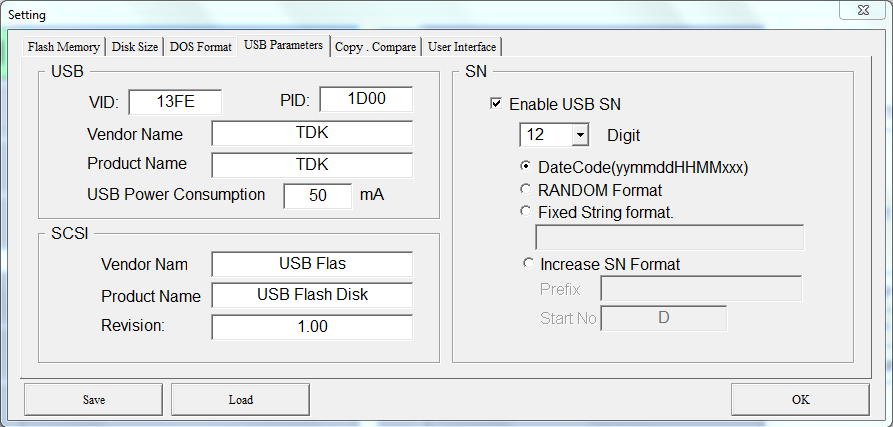
Click the "USB Parameters" tab and populate the VID, PID, Vendor Name, Product Name and USB Power Consumption fields. The VID and PID are important others can be anything (the USB Power Consumption can be found when ChipGenius display the detailed information of the flash drive earlier). Click "OK" button:
- You will be back in main window and click the big "START" button to start the low level format of you flash drive. After it reached 100% click "QUIT" button. Congratulations! your flash drive is now fixed and accessible.
Comments
arpeggio
Thu, 07/24/2025 - 09:45
In reply to Description: [D:]USB Mass Storage Device(2268 PRAM) Device Type: by anas (not verified)
Try out different tools to…
Try out different tools to identify one that successfully resolves your flash drive issues. Please note that webfoobar.com is not liable for any data loss or permanent damage, so use the recommended solutions at your own discretion.